WILL Website Manual for Content Authors
Metadata: Why it Matters and how to use it
What is Metadata?
Metadata makes the web work.

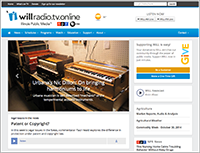
Imagine a picture published on a web page. The web page has no title, description, date, byline, or teaser, and the picture has no caption or photo credit. You might look at the picture and decide it’s a woman standing at a podium speaking to an audience. You might recognize the woman as Chancellor Phyllis Wise from the University of Illinois. And you would be a leg up on the vast majority of web users who have never heard of Phyllis Wise, let alone know what she looks like.
Google, Bing, and the other search indexes would have no clue about this picture. Therefore, anyone searching for news about Phyllis Wise would not find your web page. Worse than this, Google, Bing, and the others will crawl this page and determine that WILL has a crappy website that they can’t properly index. Our PageRank goes down, which means even our best pages are ranked lower in search results.
So what kind of metadata do we need to succeed?
- Title, Description, Teaser, Short Title, Caption, Byline, Entry Date, People, and most of the other fields in our Entry forms are important sources of good metadata for each Entry.
- But to really make our website content maximally accessible to the search engine spiders that index the web, we need to add metadata formatted specifically for them.
Spiders & Web Crawlers
A web page is like an iceberg: when you look at it in a browser, you see only the part showing above the surface.
A web page consists of code: HTML, CSS, and JavaScript. This code is highly structured so browsers know how to make it useful to humans. Well-structured web pages are highly useful to the robots, spiders, and other crawlers that traverse the internet looking for content to index. When you do a search, you are searching against that index. Therefore, the more intelligible your web page is to the crawlers, the better your content turns up in searches. Since about half our website traffic comes from search, getting this right is incredibly important.
Your Role with Metadata
It’s the Webmaster’s job to provide well-structured web pages. It’s your job to add good metadata to fit into that structure.
When you create an Entry, you are already adding important metadata in the Title, Date, and Description. But to be most effective, you need to add still more metadata which the website user never sees, but search engines and social media applications use to make sense of our content.
These fields are all contained in our Metadata tab in the Entry form:
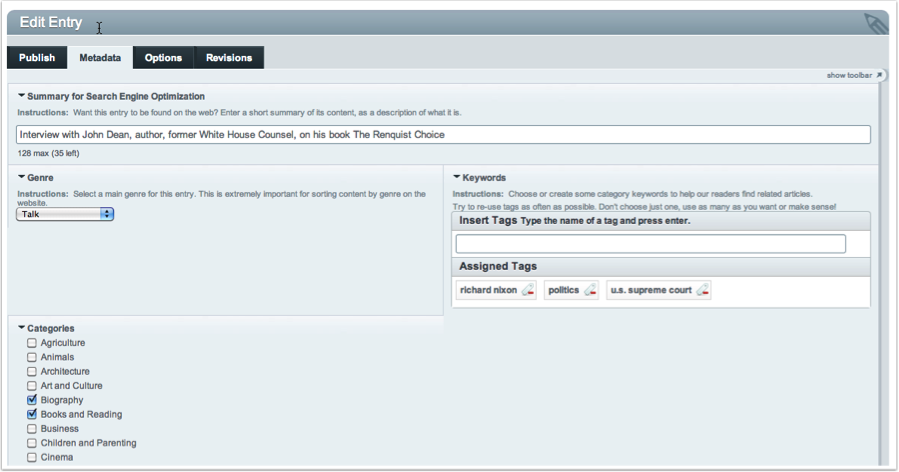
These four Metadata fields are incredibly important:
- Summary for Search Engines: This is a short statement that describes the entry content. We embed it in the “head” section of the web page, seen only by search engines and social media. The entry Title usually doesn’t work well here, nor does the Description. So we ask you to write a succinct but complete sentence describing the entry for this field.
- Genre: A simple dropdown list which tells various internet applications if this item is News, Business, Agriculture, Talk, etc. Also important for RSS feeds to things like iTunes can properly categorize our content.
- Keywords: Incredibly important! Make your content searchable by adding specific subject terms.
- Categories: This is a “controlled vocabulary” of subject terms, so we can map our content to other similar content on the web.
We could spend days talking about how all this metadata plays out on the web. The important thing is that you add it thoughtfully to every content entry. It takes time, but it adds a great deal of value to your content. If you want our stuff to be found, this is how to do it.
Adding good metadata to each Entry is part of your job as a content producer.
Summary for Search Engines
Write a sentence that neatly summarizes this entry.
You might assume the Title, Teaser, Short Title, or Description are enough to make sense of the Entry. And together they might, for humans. For machines, we need a neat one-sentence summary that wraps it all up. This Summary goes in the <head> section of the Entry web page, and is used by Google, Facebook, and others.
Genre
Genre describes the type of production the Entry belongs to. It allows search engines to properly sort our content along with billions of other entries on the web.
Here are the Genres we use for our content:
- Agriculture
- Arts & Culture
- Business/Financial
- Children
- Commentary
- Community
- Consumer
- Documentary
- Educational
- Entertainment
- Event
- Health
- History
- How-to
- News
- Politics
- Promotion
- Science
- Sports
- Talk
- WILL
Select the most appropriate Genre from the dropdown list.
Don't over-think this: a News story about politics is still News. A Focus interview about health is still Talk.
We use the Keywords field to specify the subjects of the News story or Focus interview, and let Genre say what type of content this is.
Keywords
Keywords are words, names, and places that describe content in your Entry. They are also known as Tags. You come up with your own Keywords, and type them in one at a time in the Keywords field.
Add as many Keywords as needed for your content. A good number of Keywords is three to 10 per Entry. Type one Keyword at a time, then hit Enter. As you begin typing you will usually see suggested keywords pop up below the field:
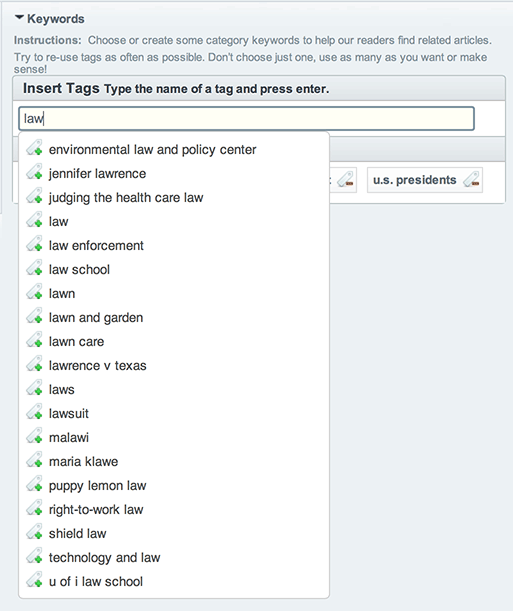
If the Keyword you want to add is already in the system, select it from the dropdown list and hit Enter.
Note that in the case, typing "law" brings up previous keywords containing "law" including "lawn care". Also note that our list of previous keywords includes "lawn" and "lawn and garden". This happened because someone didn't notice that a Keyword close to the one they were entering already existed. There is no reason to have both "lawn" and "lawn care" as different Keywords. In fact we want to avoid this. Periodically, the Webmaster will go through our Keyword database and merge terms that mean the same thing. You can help by re-using previous Keywords if appropriate.
Keywords on our site are used by both humans and search engines.
- They show up as Tags on our web pages, in Tag Clouds in various places, and are used to automatically general links to Related entries.
- They are embedded in our
<head>metadata used by search engines. - They are also added to RSS feeds to allow our content to be correctly sorted by iTunes and other podcasting services.
Keywords can include people names, place names, and short phrases or two or three words (but not sentences). They should always be lowercase, even with proper names.
Categories
Categories are subject terms that are part of a "controlled vocabulary." Unlike Keywords, you can't add new Categories, you just pick from the existing list of subject terms.
Categories are part of a Taxonomy whereas Keywords are part of a Folksonomy. Taxonomy plus Folksonomy equals powerful stuff: they make our content findable and usable by the widest possibly range of humans and web applications.
Almost all sections of our website use the same controlled list of Category terms. This list was compiled after a great deal of research, and is based on the list of subject terms developed by the public broadcasting metadata project known as PBCore. Barring the introduction to the universe of entirely new subjects, we will not be adding to it. If you need a more specific term to describe the subject of your content, you should use the Keywords field for that.
Do It Now
The only way this works is by you clicking that Metadata tab at the moment of Entry creation. No-one is going back to add metadata later. We have 30,000 Entries on our website. Add good metadata when you create a new Entry, and you make our content findable everywhere.
Metadata One-Page Guide for Producers
If the above seems daunting, we have a simple one-page guide for producers covering the basics. You can download this guide, and refer to it quickly as you create content.
Social Media need Metadata
Facebook and other social media services also rely on metadata embedded in your web page to make sense of it.
You’ve probably noticed when you paste a URL into a Facebook status update, it pulls in a thumbnail image and a sentence or two of text from that web page. Websites enable this kind of integration with Facebook by providing metadata structured specifically for Facebook, called OpenGraph.
OpenGraph metadata is embedded in the
<head>section of each web page. It's part of the iceberg that sits below the water, so humans don't see it but spiders and social media sites do.Twitter and other social media services have their own metadata needs, like our Twitter username so they can properly associate our content with our Twitter stream. To be fully present in social media spaces, we need to include all this metadata.
Here's what all this metadata stuff looks like to the machines crawling our website: